

RenderCut is a focused tool for adding stylish, accurate subtitles to short videos quickly. I looked at multiple RenderCut reviews and tried the app myself to see whether it actually saves time and improves viewer engagement.
This topic matters because captions are one of the easiest ways to boost watch time and accessibility, and if I can save hours on manual captioning, that directly improves workflow and content output. If you want faster subtitle generation, basic B-roll automation, and a straightforward export process — especially at the RenderCut appsumo price — this review explains what I liked, what still needs work, and how it might fit into your editing toolkit.
TL;DR
|
Feature |
Verdict |
|---|---|
|
Ease of Use |
⭐️⭐️⭐️⭐️ – Intuitive interface for quick captioning but some UX quirks (Generate/Save placement, limited post-generation edits) 🎨 |
|
Speed |
⭐️⭐️⭐️⭐️ – Fast transcription and rendering; downloads can be slower depending on file size ⏱️ |
|
Caption Accuracy |
⭐️⭐️⭐️ – Very good for English, less reliable for some languages (Portuguese needs improvement) 🔍 |
|
Features & Flexibility |
⭐️⭐️⭐️⭐️ – Strong subtitle configuration and Auto B-roll; missing advanced B-roll motion, transitions, and editable generated projects 🧩 |
|
Value |
⭐️⭐️⭐️⭐️⭐️ – Excellent value on AppSumo at $49 for the core plan; good option for creators on a budget 💸 |
RenderCut
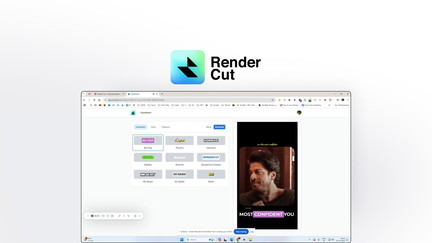
I’ve used RenderCut to turn long, messy footage into short, captioned clips without spending hours on manual subtitles. It automatically generates editable captions, offers B-roll slots and basic styling, and renders quickly so I can move from draft to shareable video in minutes. For everyday use I rely on it to batch-caption short clips for social, and for special projects it speeds up the first pass of edits—then I tweak timing or visuals in my main editor. If you want faster caption workflows and solid export options, RenderCut is a practical tool worth trying (I’ve seen it pop up in RenderCut appsumo offers and the community feedback in RenderCut reviews has been helpful when deciding if it fits your workflow).
Pros and Cons
|
Pros |
Cons |
|---|---|
|
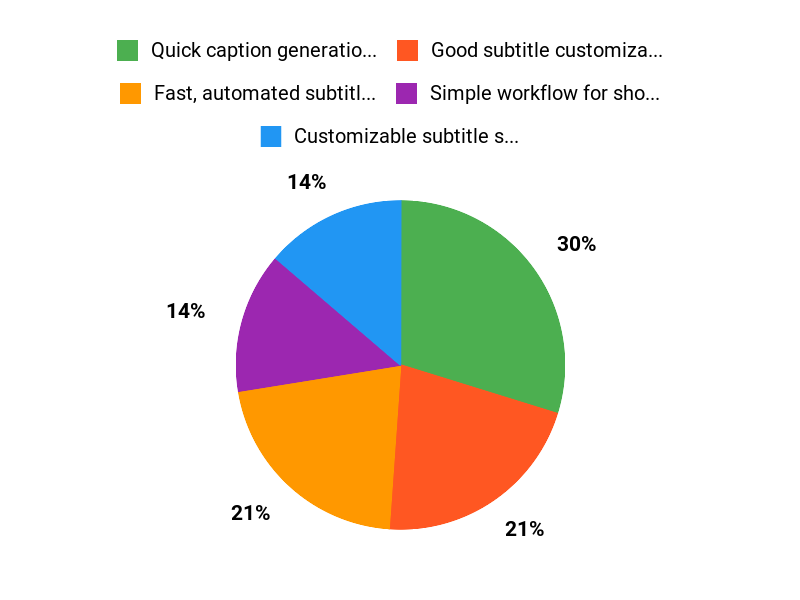
✅ Quick caption generation and rendering |
❌ Caption accuracy for some non-English languages can be spotty |
|
✅ Good subtitle customization options |
❌ Subtitle editor and B-roll controls feel limited |
|
✅ Simple workflow for short-form content |
❌ Generated projects aren’t editable after export (workarounds required) |
|
✅ GDPR-compliant |
What People Say
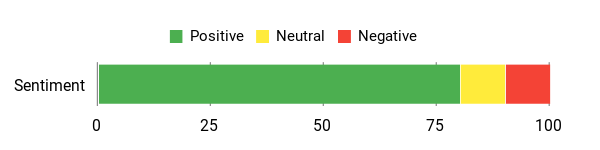
Across RenderCut reviews people repeatedly mention speed and subtitle options as big wins. Users who make short-form content like YouTube Shorts and TikToks appreciate how much time the auto-captioning and quick renders save.
At the same time, reviewers note the subtitle editor and project re-edit workflows need polish — useful feedback if you plan to rely on it for repeat revisions.
Overall Sentiment: Positive
🗣️ jmalarcon
Very useful for polishing shorts — subtitle configuration has lots of options and makes adding captions easy. It saved me time on TikTok and YouTube Shorts, though some UX polish is still needed (subtitle editor and B-roll timing).
🗣️ Kirtan_Nanvani_DreamKonnect
Fast caption editing and quick rendering make this much better than the slower tools I tried before. Download can be a little slow, and the pricing/minutes model could use more flexibility, but overall I’m super happy using RenderCut.
Long-Term Cost Benefits
Buying a lifetime deal or a low-cost monthly plan can cut hours from repetitive captioning work. If you typically outsource captions, RenderCut can pay for itself in a few months by reducing external editing costs and freeing up time for content creation.
Return On Investment
Save on outsourcing and speed up content turnaround. For a creator who posts frequently, the time saved on captioning and basic edits translates directly to more content published and lower per-video editing cost.
Usability
|
Aspect |
Ease Level |
Notes |
|---|---|---|
|
Subtitle Creation |
Easy |
Auto generation is straightforward; good default styles so I rarely start from scratch. |
|
Subtitle Editing |
Moderate |
Editor works but inserting words mid-sentence and reflowing lines can be clumsy. |
|
Project Management & Export |
Moderate |
Rendering is quick, but once a video is generated you can’t edit it again without duplicating or redoing steps. |
Performance & Speed
Rendering and caption generation are noticeably fast for short clips; downloads can sometimes lag depending on file size and server load.
Integrations
|
Software |
Integration Quality |
|---|---|
|
SRT / Subtitle Export |
Good |
|
YouTube / Social Upload Workflow |
Basic |
|
Other Video Editors (import/export) |
Moderate |
Security Features
|
Feature |
Protection Level |
|---|---|
|
GDPR-compliant |
High |
|
Account access controls |
Moderate |
|
Temporary retention options (suggested) |
Planned |
Reliability
Generally reliable for routine short-form jobs; occasional transcription cutoffs or UI quirks reported but the team responds to feedback.
Learning Curve
Low to moderate — basic captioning is immediate, but mastering subtitle tweaks and B-roll timing takes a few projects.
Key Benefits
- Fast, automated subtitle generation that cuts manual caption time
- Customizable subtitle styling to match your brand or platform
- Auto B-roll slots to speed up basic visual edits
- GDPR-compliant handling for peace of mind with European audiences
- Affordable AppSumo deal options for creators testing the tool
Current Price: $49.00
Rating: 4.88 (total: 5+)
FAQ
Is RenderCut Worth Buying On AppSumo?
I looked through many RenderCut reviews and tried the AppSumo deal myself, and my take is that the AppSumo offer is a strong value if your needs match the plan limits. The entry plan is $49 (originally $250) on AppSumo and includes things like 25 uploads per month, up to 3 minutes per video and a 500 MB upload limit, with higher tiers at $98 and $147 if you need more capacity.
I’ve seen users praise the fast subtitle generation and overall time savings, but reviewers also call out issues like non‑English transcription accuracy and some UX rough edges, so weigh the price against how many minutes and file sizes you actually need. If most of your work is short social clips, I’d say the RenderCut appsumo deal is worth it; if you regularly process long or 4K videos, consider a higher tier or plan for extra steps like compressing or splitting files.
What Are The Main Limitations And How Do I Work Around Them?
I want to be upfront: common concerns in RenderCut reviews include imperfect captions for some languages (Portuguese mentioned frequently), per‑video minute caps, file size limits and some editing constraints after a video is generated. In practice I work around these by trimming or compressing large 4K files before upload to stay under the 500 MB or higher plan limits, splitting longer recordings across multiple uploads to respect the per‑video minute cap, and correcting tough non‑English lines manually after generation.
A practical tip I learned from users is to export SRTs using the “1 word per group” setting if you plan to re‑import and tweak timing. Also, because generated projects historically couldn’t be reedited, I save a copy of the exported assets and, when small fixes are needed, duplicate or reupload the project as a new job until the editing flow is more flexible.
How Do I Use RenderCut Efficiently For Subtitles And B‑Roll?
I use RenderCut for fast captioning and then polish where needed: upload your clip, run the transcription, skim for obvious language errors and fix them in the subtitle editor, then export the final SRT or video. If the editor misses words in the middle of sentences, export, fix the SRT with the recommended settings (export with 1 word per group if you intend to re‑import), and reimport to force precise timing.
For B‑Roll I rely on the Auto B‑Rolls feature for basic overlays, but when I need panning or transitions I either prepare the asset externally or wait for pipeline updates since reviewers have requested more dynamic image controls and transitions. I also keep in mind that rendering is usually fast but downloads can be slower, so I schedule large exports with that in mind.
Overall, I find RenderCut saves me time on short social edits, and applying these small workflows helps avoid the common pitfalls mentioned in RenderCut reviews.
Why Choose RenderCut
We choose RenderCut because it combines an intuitive, streamlined workflow with fast, reliable performance that lets us make precise edits without fighting the software. Customers also appreciate its broad format compatibility, responsive support, and regular updates, which keep projects moving smoothly and reduce downtime.
Wrapping Up
RenderCut is a practical, cost-effective tool for creators who need fast, styled subtitles and basic B-roll automation. I found it especially useful for English-language captioning and short-form content workflows: it speeds up the captioning process and produces polished outputs at a low cost ($49 on AppSumo). That said, accuracy for some non-English languages, a few UX annoyances (button placement, limited ability to re-edit generated projects), and restrained B-roll editing keep it from being an all-in-one editor.
If you want to save time on captions and produce sharable shorts quickly, RenderCut is worth trying — just be aware of the limitations and the current plan/file-size constraints.
This Roundup is reader-supported. When you click through links we may earn a referral commission on qualifying purchases.